

I was sitting at my workbench last Tuesday, trying to cross-reference some old blueprints with a digital scan, when my laptop decided to take a five-minute “thinking” break. That spinning wheel of death isn’t just a technical glitch; it’s a thief. It steals your focus, your momentum, and quite frankly, your sanity. Most people will tell you that the only real solution is to drop two grand on a shiny new machine, but that’s just marketing noise designed to exploit your frustration. I’ve spent my career looking at systems—whether it’s a logistics chain or a local network—and I know that you don’t always need more hardware; you just need to stop the bleeding.
I’m not here to sell you on “miracle” software or complex registry hacks that do more harm than good. Instead, I want to show you how to speed up your computer by stripping away the digital friction that’s choking your performance. We’re going to focus on high-impact, no-nonsense adjustments that reclaim your machine’s efficiency without breaking your budget. Let’s get your system running lean again so you can get back to the work that actually matters.
Table of Contents
Strip the Bloat Optimize Windows Startup Programs and Manage Background Pro
Most people don’t realize that their computer is fighting a silent war every time they hit the power button. When you boot up, it isn’t just loading the OS; it’s trying to launch every single piece of software you’ve ever installed that decided it “needed” to start immediately. To fix this, you need to optimize Windows startup programs by opening your Task Manager and ruthlessly disabling anything that isn’t essential for your immediate workflow. If you don’t need Spotify or a printer utility running the second you sit down, kill the startup trigger.
Once you’ve cleaned up the launch sequence, you need to look at what’s running while you’re actually working. It’s easy to ignore those little icons in your system tray, but they are constantly eating up cycles. Learning how to manage background processes is about reclaiming those stolen resources. I like to treat my system like my workshop: if a tool isn’t on the bench being used, it doesn’t belong on the workspace. Strip away the digital noise so your processor can focus on the task at hand rather than idling on tasks you never even asked for.
Eliminate Digital Friction Clear Temporary Files Pc and Reduce System Laten
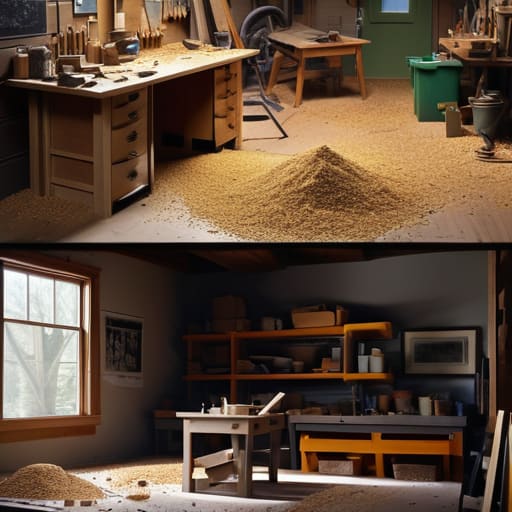
Think of your hard drive like a workbench in my shop. If I let sawdust, wood scraps, and old blueprints pile up in every corner, I can’t actually find the tools I need to get the job done. Your PC operates the same way. Over time, your OS accumulates a mountain of digital debris—cache files, installer logs, and temporary data—that just sits there, eating up resources and creating drag. To fix this, you need to clear temporary files pc style: run the built-in Disk Cleanup utility or manually purge your `%temp%` folders. It’s not a magic fix, but it removes the unnecessary weight that’s slowing your momentum.
Once you’ve swept the floor, the next step is addressing the lag that happens when you’re actually in the middle of a task. If you’re noticing a delay between a click and an action, you’re dealing with high latency. This is often caused by the system struggling to juggle fragmented data or insufficient memory. While cleaning up files helps, if you find yourself constantly hitting a wall, you might eventually need to upgrade RAM for faster performance or, more importantly, replace an old mechanical drive. But for now, let’s focus on the immediate win: keeping that digital workspace lean and responsive.
Trim the fat: three more ways to reclaim your system's performance
- Audit your storage like a warehouse manager. We often treat hard drives like bottomless pits, but a drive choked with unorganized files and massive, forgotten downloads creates massive latency. I like to treat my storage in tiers: active projects on the SSD, and everything else moved to external or cloud storage. If your drive is more than 80% full, your OS is struggling just to breathe; clear out the junk to give your system some room to maneuver.
- Tame your browser’s hunger. Most people don’t realize that their web browser is often the heaviest “app” running on their machine. If you have twenty tabs open, you aren’t just looking at websites; you’re running twenty mini-programs that are eating your RAM for breakfast. I use a simple rule: if I haven’t clicked it in an hour, it gets closed or bookmarked. If you must keep them, use a tab suspender extension to keep the memory usage from spiraling.
- Check your hardware’s “vital signs.” Sometimes, no amount of software tweaking will fix a fundamental bottleneck. If you’re still running on a mechanical hard drive (HDD), no amount of cleaning will make it feel snappy—upgrading to an SSD is the single most impactful “system optimization” you can perform. Similarly, if you’re constantly hitting 90% memory usage in your task manager, it’s time to stop fighting the software and simply add more RAM. Work with your hardware, not against it.
The Bottom Line
Stop treating your computer like a junk drawer; treat it like a workspace by aggressively pruning anything that doesn’t actively serve your current task.
Speed isn’t about buying more hardware; it’s about reducing the friction between your intent and your machine’s response.
## The Philosophy of Digital Lean
“A computer shouldn’t feel like a cluttered workshop where you’re constantly tripping over tools you aren’t even using. Speed isn’t about adding more power; it’s about stripping away the noise until only the essential functions remain.”
Gregory Scott Miller
Beyond the Quick Fix
At the end of the day, speeding up your computer isn’t about chasing the latest hardware specs or buying expensive software suites. It’s about the fundamentals we’ve covered here: trimming the fat from your startup routine, managing those invisible background processes, and purging the digital debris that creates unnecessary latency. When you strip away the bloat, you aren’t just making a machine run faster; you are reclaiming the mental bandwidth that usually gets wasted waiting for a loading bar. It is about building a lean, functional system that responds to your needs rather than forcing you to wait on its whims.
Remember, your tools should be an extension of your intent, not a barrier to it. Just like I do with my woodworking tools in the shop, I believe in maintaining what we own so it stays reliable when we actually need it. Don’t let a sluggish interface dictate the pace of your workday or your creativity. Take these steps, audit your digital environment regularly, and get back to the work that actually matters. You deserve a workspace—physical or digital—that works as hard as you do.